
Quick Guide: How to Download & Save Fonts on Windows and macOS
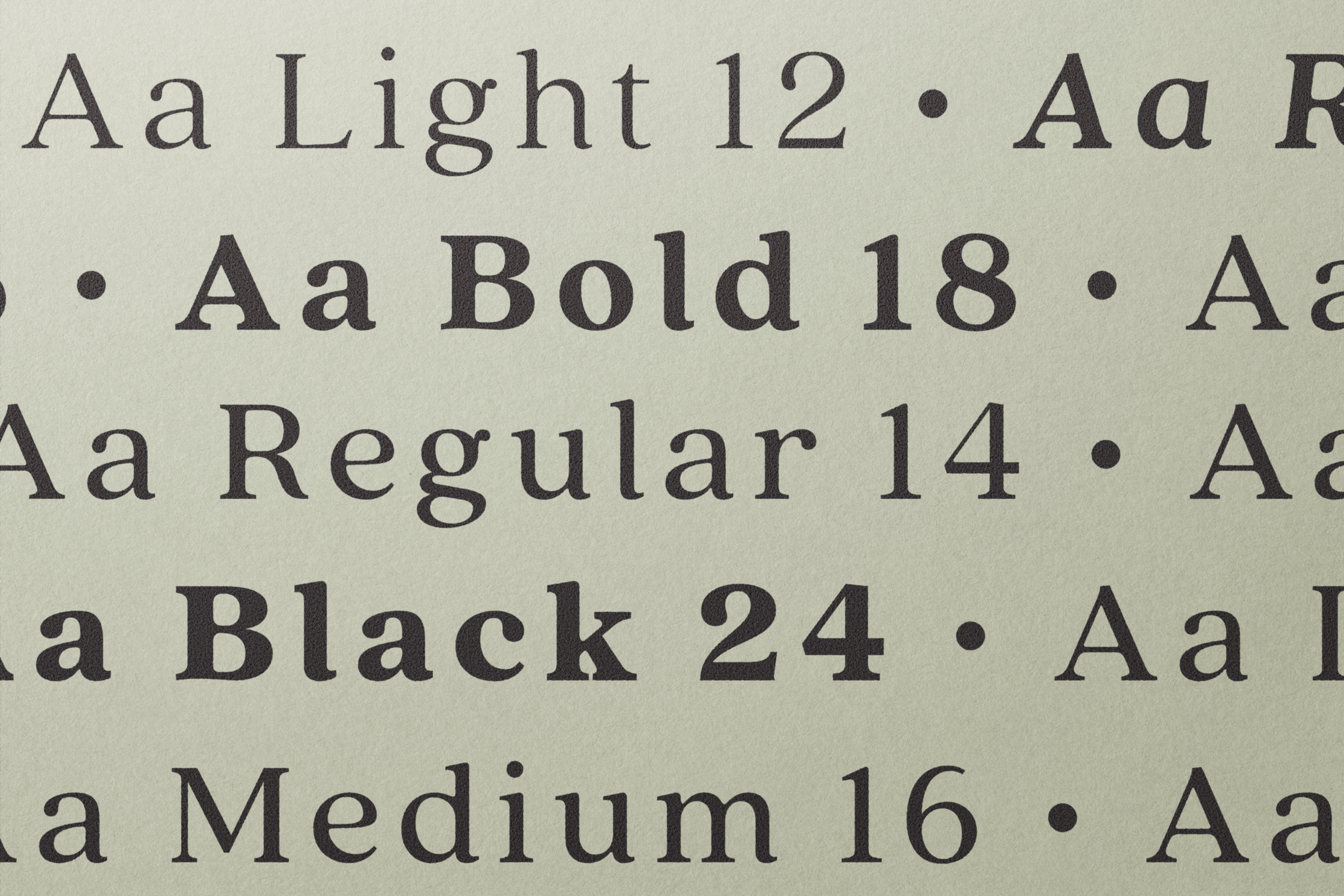
An easy guide to giving your computer a little more character.
Whether you're designing a brand, crafting a presentation, or just wanting your documents to feel a bit more you, installing new fonts is simple once you know where to click.
Here’s your no-fuss guide to downloading and saving fonts on both Windows and macOS.
Where to Find Fonts You’ll Love
Before we get into the how-to, you’ll need a font to install. Some favorite spots to browse:
Google Fonts — Free, clean, easy to use
Adobe Fonts — Included with Creative Cloud
Font Squirrel — Free + hand-curated for quality
MyFonts — Paid fonts from top designers
Once you've downloaded a font (usually a .ttf or .otf file), you’re ready to install.
Installing Fonts on Windows
1. Download the font file
It will likely be a .zip file.
Right-click the file → Extract All…
2. Open the extracted folder
Inside, you'll see one or more files ending in .ttf or .otf
3. Install the font
You have two easy options:
Option A: Double-click to install
Double-click the font file
Tap Install at the top of the preview window
Option B: Drag + Drop into your Fonts folder
Open Control Panel
Go to Appearance → Fonts
Drag your font file into that window
Windows will handle the rest, and your new font will be ready to use in any app (Word, Canva, Adobe, etc.).
Installing Fonts on macOS
1. Download & unzip the file
Double-click the .zip file to unpack it.
2. Open the font file
You’ll see a preview window pop up with all the letters looking lovely.
3. Click “Install Font”
This adds the font to your Font Book, where all your system fonts live.
Bonus Tip: Organize Your Fonts
In Font Book, you can create collections. This is perfect if you're like us and love grouping fonts by mood: “Minimal,” “Handwritten,” “Bold Statements,” “Whimsical Serifs,” etc.
Your new font will automatically be available in all your applications.
A Few Helpful Tips
Keep your library tidy
Too many fonts can slow your system down. Install only the ones you really love.
Know your file types
OTF = more advanced features (good for designers)
TTF = widely compatible
Either will work beautifully for most projects.
Save your fonts somewhere safe
Fonts you purchase often come with licenses—keep the original files backed up so you don’t lose access later.
Now Have Fun With It
Installing fonts is one of the simplest ways to breathe life into your work. Whether you're building a brand, crafting a mood board, or refreshing your desktop aesthetic, the right font can make everything feel a little more you.